Autor: admin

  • The Reolink Battery Video Doorbell is ALMOST Perfect.

    Hi, and welcome back. Today, I’m taking a look at the Reolink Battery Video Doorbell, a smart home device that’s been gaining attention lately. I’ve been testing it for a few days, and in this video, I’ll walk you through how it performs, what’s good about it, what’s not so good, and whether it’s worth your money.

    Let’s dive in.

    ⭐ Buy the Reolink battery Video Doorbell at: ⭐
    – Reolink Official store: https://reolink.com/us/product/reolink-doorbell-battery/?aff=57
    – Amazon US: https://amzn.to/43dxods
    – Amazon UK: https://amzn.to/42KC22A
    – Amazon DE: https://amzn.to/3EBOJU9
    – Amazon NL: https://amzn.to/3RJugQ7


    ⭐⭐⭐ NOTE: ⭐⭐⭐

    This article is the script for a YouTube video. I wrote it prior recording the video. To continue doing this, please check out the video, comment under it, give it a thumbs up, and subscribe to my YouTube channel. This will ensure that the video is offered more often to new visitors so that they can stay informed of the latest Home Assistant tutorials and smart home-related product reviews.

    I appreciate your support!

    Ed

    Click here to watch the video


    I’ve been using the older model of the Reolink Video Doorbell for a couple of years now, and I’m still very satisfied with it because it’s local and works perfectly with other systems, like Home Assistant. In my opinion, this is the best video doorbell that you could buy. Next to the Reolink Video Doorbell, I used a Ring Pro Video Doorbell at my office door. That video doorbell works excellently, but it has some disadvantages, like requiring cloud storage and a monthly fee. I always wanted to replace it, and now I’ve found the (almost) perfect candidate: the Reolink Battery Video Doorbell that Reolink sent me to review!

    Design and Build Quality

    Reolink products always have a very well-finished look, and the same goes for the box of the Battery Video Doorbell. Inside the box, you’ll first find the manual and a template to help position the screws correctly. Naturally, the video doorbell itself is also included. The Reolink Battery Video Doorbell feels solid. It has a clean, modern design, with a glossy button surrounded by an LED ring. It’s compact and not bulky. I have the white version, but a black version is also available. The box also contains mounting materials and an angled wedge, allowing you to install the video doorbell at an angle.

    You can also get a chime, which is not included in the box, but there are bundle deals that offer both the video doorbell plus the chime.


    Installation

    Installation is simple. It’s a 100% wire-free device, so you don’t need to run any cables or worry about your existing doorbell wiring. Just mount the bracket, attach the doorbell, and you’re good to go. However, the doorbell has an option to connect it to your existing doorbell transformer, too, as long as that transformer delivers between 8 and 24 Volts.

    Setup with the Reolink app is straightforward and works just like all Reolink cameras. Just scan a QR code, connect your Wi-Fi, and you’re online. This camera does not have a Power over Ethernet or UTP cable connection. It’s WiFi only.


    Power and Battery Life

    As the name suggests, this is a battery-powered doorbell. Reolink claims up to 3 months of battery life on a full charge, depending on usage. Of course, when you watch a lot of live streams on this camera, you will have to recharge the battery sooner.

    You can charge the video doorbell via USB-C, and the battery is non-removable, so you’ll have to dismount the doorbell to charge it. Not ideal, but manageable if you’re not getting constant motion events. But you can also connect the video doorbell to your existing doorbell transformer or to a power adapter that supplies between 8 and 24 volts, so you don’t have to worry about the battery anymore. I connected it to my existing wiring, and the battery stayed at 100% that way.


    Video Quality

    Let’s talk video. The Reolink Battery Doorbell has a 2K resolutionthat’s 2048 x 2048 pixels, and a 150-degree field of view. The video is crisp, colors are natural, and you can clearly see faces, packages, and license plates during the day.

    At night, you’ve got an infrared option. The infrared mode gives good detail without blowing out highlights as long as the camera has a clear view path.

    The camera also has HDR, which helps manage challenging lighting situations, especially if your doorway gets a lot of backlight during the day. It balances exposure well, so faces aren’t too dark or washed out.

    What I noticed is that the camera has a circular mask, which means the image isn’t displayed as a square. I wonder what the reason for this is, since other Reolink cameras I own don’t have this. It seems like some kind of gimmick to give the impression that you’re looking through a peephole in your door, but for me, that wasn’t really necessary.


    Motion Detection and Smart Features

    Motion detection is where things get interesting. Reolink gives you PIR motion detection with customizable zones. You can adjust the sensitivity, set specific zones to watch, and even schedule alerts for when you want them.

    I extensively tested the motion detection. At first, it seemed like the video doorbell wasn’t responding very quickly, but after I adjusted the sensitivity a bit, it worked just fine! There’s a slight delay between the image in the app and the actual movement, but that’s not a big issue for me. One thing I noticed is that in some cases, movement is not detected at all. This happens sometimes when a person just briefly moves in front of the camera.

    What I do miss, though, is that the camera doesn’t save footage from just before the motion is detected. That’s understandable since it’s a battery-powered camera, but I’d really like it if it would record pre-motion footage when the camera is connected to external power.

    It supports Smart Detection, which allows it to differentiate between people, vehicles, and packages.

    On the other hand, you don’t get facial recognition or advanced AI features. But considering the price point, that’s not unexpected.


    Two-Way Audio

    The audio quality is solid. There’s a little delay, but the speaker is loud enough, and the mic picks up voices clearly. It works fine for telling the delivery person to leave a package or greeting a guest. It’s not studio-quality, but for a doorbell, it’s more than enough. Next to that, you can trigger an alarm sound to scare away unwanted visitors.


    Storage and Subscription

    Reolink clearly understands that users prefer not to have to subscribe for data storage. You can store footage locally on your video doorbell using a microSD card (up to 256 GB). That means you’re not locked into monthly fees, and you don’t have to worry about your privacy either. Now this is where Reolink shines. In addition to storing footage on the video doorbell itself, you can optionally connect this camera to the Reolink Hub, allowing recordings from all your Reolink cameras to be stored centrally on the Hub. If you use the Hub, the battery life of the video doorbell is also longer because you watch recorded footage from the Hub and not from the camera. You can also save the footage to your own NAS using FTP.

    If you really want cloud storage, Reolink offers Reolink Cloud, but it’s optional. Local storage works well and is easily accessible through the app.

    This alone sets it apart from many competitors, especially those that require a paid plan to view recorded events. This is precisely why I replaced my Ring Video Doorbell with the Reolink Battery Video Doorbell.


    Connectivity and Compatibility

    The Reolink Video Doorbell works over both 2.4GHz and 5GHz Wi-Fi.

    It’s compatible with Google Assistant and the Alexa Echo Show to view the camera. And recently, Reolink has been officially certified for Home Assistant, so you can now set up and control this video doorbell directly from Home Assistant!


    The Reolink App

    The Reolink app is fast, clean, and relatively easy to use. You can view a live feed, playback recorded events, adjust motion settings, and set up alerts, all without much digging. It offers many options that are also available in other Reolink cameras.

    Push notifications arrive quickly, and you can customize alert tones if needed. This comes in handy if you use multiple cameras.


    Reliability

    Over the testing period, the doorbell stayed connected and responded quickly most of the time, but sometimes missed events where someone was briefly visible. I got no random disconnects, no crashes, and no false alerts, but I do have a stable WiFi connection at home. I guess if your WiFi is not stable, this will have a bad influence on the reliability, but that is hardly Reolink’s fault.

    Firmware updates are handled automatically through the app, and in my experience, Reolink has a decent track record of ongoing support.


    Final Thoughts

    So, should you buy the Reolink Battery Video Doorbell?

    If you’re looking for a budget-friendly, no-subscription, easy-to-install smart doorbell with solid video quality and reliable motion alerts, this is a strong contender. It delivers where it matters, and skips a lot of the fluff that inflates prices on other models.

    But if you want a video doorbell with AI support, pre-recording footage, and a UTP connection, you might want to consider another model. Luckily, there are also wired Reolink Video Doorbells that support WiFi or Power Over Ethernet. See the link in the video description for my review covering those models.


    Pricing

    At the time of this review, the Reolink Battery Video Doorbell is priced between €115 and €140, depending on possible sales offers. You can find links to where to purchase this video doorbell in the description of this video.


    And now for the pros and cons.

    Pros

    The pros of this Reolink video doorbell are:

    • The image quality is 2K video with HDR.
    • The video doorbell does not require a mandatory subscription.
    • Footage can be stored locally on a microSD card or your NAS via FTP.
    • Installation is easy and wire-free if you only use the battery.
    • It has accurate person and vehicle detection.
    • The price is affordable.

    Cons

    And the cons that I could find are:

    • The camera must be removed from the wall to charge if you do not use an external power source.
    • It has no removable battery pack.
    • In some cases, movement is not detected.
    • It does not store pre-recorded images when motion is detected.

    That’s it for today. If you found this review helpful, drop a like and consider subscribing for more no-nonsense smart home reviews and tutorials. I want to thank the people who support me monthly so that I can create these videos for you. If you’d like to help, check the links in the description for Patreon, Ko-Fi, or how to become a paid channel member.

    Thanks for watching, and I’ll see you in the next one.

    Bye Bye

    ⭐ Buy the Reolink battery Video Doorbell at: ⭐
    – Reolink Official store: https://reolink.com/us/product/reolink-doorbell-battery/?aff=57
    – Amazon US: https://amzn.to/43dxods
    – Amazon UK: https://amzn.to/42KC22A
    – Amazon DE: https://amzn.to/3EBOJU9
    – Amazon NL: https://amzn.to/3RJugQ7

    The post The Reolink Battery Video Doorbell is ALMOST Perfect. appeared first on Smart Home Junkie – Tutorials and Information for your Smart Home and Home Assistant.

  • Show RSS News feeds on your Dashboard in Home Assistant!

    Hi! Here I am again with a super fun Home Assistant tutorial. What if you want to show the latest news items from your favorite website on your Home Assistant dashboard? With this tutorial, you can do that yourself! Let’s do this!


    ⭐⭐⭐ NOTE: ⭐⭐⭐

    This article is the script for a YouTube video. I wrote it prior recording the video. To continue doing this, please check out the video, comment under it, give it a thumbs up, and subscribe to my YouTube channel. This will ensure that the video is offered more often to new visitors so that they can stay informed of the latest Home Assistant tutorials and smart home-related product reviews.

    I appreciate your support!

    Ed

    Click here to watch the video

    Do you remember this video? In it, I explained how to display the latest news article on your dashboard or your Ulanzi Desktop Clock. This is very useful if you just want to see the latest update! However, several people asked me if it’s also possible to show a complete news overview on the Home Assistant dashboard. And yes, that’s possible, too! But it works a bit differently.

    We will set up a Trigger-Based Template in Home Assistant to create this overview. This means we’ll be working with YAML again. If you want to learn more about YAML and programming in Jinja, check out my free YAML and Jinja course, which I created earlier. It will help you understand how templates work in Home Assistant much more easily.

    Alright, let’s get started!

    Installing the Feedreader Integration

    To begin with, we need to install the Feedreader Integration in Home Assistant. This integration ensures that your news articles are fetched.

    • Go To Settings > Devices and Services.
    • Click Add Integration.
    • Search Feedreader.
    • Enter the URL of the RSS feed you want to follow—for instance, the newsfeed from the BBC. If a website provides an RSS-feed, you can find the URL of that feed on your specific site. Be aware that some feeds may not work with this integration. It’s a matter of trying to see what feed works for you.
    • Click Submit.
    • Select an area for your feed.
    • Click Finish.
    • You must add the feedreader integration for each feed you want to follow. I have already added some feeds on my system.
    • After you’ve added the feed, click the configure button. You can change the number of news items retrieved from the feed. I put mine to 5.
    • Click Submit and Click Finish.

    The feedreader integration is now installed. Next, we need to create a custom template sensor in Home Assistant.I have already shown how to do this in other videos, but I’ll show it again here.

    Install Studio Code Server

    First of all, you need a text editor. The best editor to use is Visual Studio Code. You can install it via the add-on store in Home Assistant. However, remember that the add-on store is only available if Home Assistant OS is installed.

    • Go to Settings.
    • Go to Add-ons.
    • Click Add-on Store.
    • Search Studio Code Server.
    • Click Studio Code Server.
    • Click Install.
    • After installation, turn on all the toggle switches if you like and click Start.

    Studio Code Server is now installed. In the next step, we will add our custom sensor, which will contain the data from our RSS feed.

    Adding the RSS Feed Sensor

    • Click Studio Code server.
    • I changed its look so that it has a dark theme.
    • Now, we have to add a line to our configuration.yaml.
    • Open the configuration.yaml file.
    • And add the following line: template: !include templates.yaml. If you have added this line before, you can skip this step.
    • After that, we must create a new file named templates.yaml. If you have already made this file, you can skip this step.
    • Click the new File icon and create the file templates.yaml.
    • Open the templates.yaml file. In my case, it already contains code, but it will be empty when you create a new file.

    We will now add the code to create a sensor containing the RSS feed data. This sensor will store the last five news items from all the RSS feeds that I defined combined. You can adapt the code to contain more news items if you like.

    First, we need to know which fields we can use on our dashboard from the news feed. You can check this by looking at the news feed’s URL, but you can also view it in Home Assistant. I’ll show you how.

    • Open two browser windows.
    • In the first window, open the Developer Tools.
    • Click the Events Tab.
    • Enter “feedreader” in the Listen to Events field.
    • Click Start Listening
    • Now go to your second Browser Window.
    • Go to Settings > Devices and Services and open the feedreader integration.
    • Click the three dots next to the feed that you want to check.
    • Click “Reload”.
    • If new news items are available, you will see the result in the Listening field in the Developer Tools. As you can see, I didn’t have new news items for a few feeds, but the Home Assistant feed shows a new one for me.
    • You will see the item names here. I will use the item “title” and “link.” They are part of the item “data”, so I will use “data.title” and “data.link” later on. You can use the other items yourself if you like.

    This is also a great way to check if your news feed is working once you’ve finished creating your dashboard card.

    I’ve pasted the code into templates.yaml and will explain what exactly happens line by line. You can manually copy the code from the screen for free, but if you want to save time, you can sponsor me with a small contribution and download the code instead. This way, you can copy and paste it yourself. Your support helps me continue making these tutorials. The link is in the description of this video. Thanks in advance for your support!

    Anyway, let’s get started. First, I define an event trigger for the feedreader integration we just installed. When one of your RSS feed sources publishes a new article, this event gets triggered, and the sensor we define below will be updated.

    Then, within the action section, I define some variables. The first two variables contain the existing lists of titles and links of my RSS feed items sensor. The second two variables contain the title and link returned by the event trigger. There are multiple ways to do this, but I like to define variables and show how variables can be used in a trigger-based template.

    The sensor is named RSS Feed Items, which will also be the entity ID in Home Assistant. Then, I define a unique ID. This isn’t required, but it’s useful if you want to make small changes to the sensor later in Home Assistant. You can generate this unique_id by right-clicking and selecting Generate UUID At Cursor.

    I’ve chosen a newspaper icon for the sensor and set the last refresh date for its status. Since the status can only contain 255 characters, I don’t use it to store news articles; instead, I store the articles in the sensor’s attributes, which can contain more data.

    Filling the attributes

    Within the attributes, I created two lists—one for the titles and one for the links to the articles.

    I start by checking whether the list variable is empty. If you’ve just created this template, the list is empty, so I check whether its value is None. If it is, I define an empty list.

    Now, I will check if the item is already on the list. During my tests, I discovered that sometimes the same item is retrieved by the RSS feedreader integration, so I want to prevent double entries from showing up in my news list. I proceed with the following code if it is not on the list.

    I populated the list with the newly retrieved news item and appended the existing news items to it. Finally, I return the first 5 items in the rss_titles variable so that the attribute named titles is populated with this list.

    For the links, I follow the same process as with the titles, but instead of using the title item, I use the link item.

    Now, save the templates.yaml file. Then, go to Developer Tools, scroll down to the YAML tab, and click Template Entities to apply the changes from your templates.yaml file in Home Assistant.

    We can now test whether our new sensor exists and whether it contains a value.

    • Go to the States tab.
    • Search for RSS feed items.
    • Click RSS feed items.

    You’ll likely see that it doesn’t contain any values yet. Typically, the values are populated once the news feed you’ve configured receives a new article, which sometimes takes a few hours. So don’t worry if there are no values yet—you must be patient.

    However, as I showed earlier in this video, you can speed up the process by reloading the news feed.

    Building the Dashboard card for your news items

    Our new sensor, RSS Feed Items, is now being populated, and we want to display it on our dashboard.

    • Open one of your dashboard views
    • Click the pencil in the right upper corner.
    • Add a new section.
    • You can remove the header of this section if you like.
    • Click the Plus icon to add a new card.
    • Search the Markdown card.
    • Click the Markdown card.
    • Enter a title, like News.
    • Add the following code.
    • I first define two variables, titles and links, which I fill out with our created sensors’ attribute titles and links.
    • Then I loop through all the titles, and for each title, I show the title with a link underneath in a list in heading3 format.
    • Ultimately, I show the last refreshed time in a smaller format.
    • Click Save.
    • Click Done.

    This code is also in the download link in the video’s description.

    And your news overview is ready!

    Bonus: Create an automation to speed up the retrieval of news items

    Now it’s waiting for your newsfeeds to contain new articles and for the Home Assistant feedreader integration to fetch them before you see them on your dashboard. This can sometimes take a while, but you can create an automation that checks, for example, every 15 minutes if there are new news articles. I’m unsure if this poses a risk of you being banned by the news site you’re trying this with, so be careful not to fetch your news too frequently. The automation looks like this:

    In the ‘When’ section, the time pattern trigger goes off every 15 minutes. In the ‘Then Do’ section, I added a ‘Reload Config Entry’ action and selected the entities, in my case, the events for BBC News and CNN.com.

    This automation is triggered every 15 minutes and checks if there are new articles.

    So, now you know how to display a newsfeed on your dashboard. I hope this has been helpful and that you’ll enjoy it. Let me know in the comments! You can support me by sponsoring me monthly, just like these people, if my videos save you time and frustration. I appreciate any help you can provide. You’ll find links to the code and instructions on sponsoring me in the video description. And don’t forget to give this video a thumbs up, subscribe to my channel, and leave a comment. I’ll see you soon!

    Bye Bye!

    The post Show RSS News feeds on your Dashboard in Home Assistant! appeared first on Smart Home Junkie – Tutorials and Information for your Smart Home and Home Assistant.
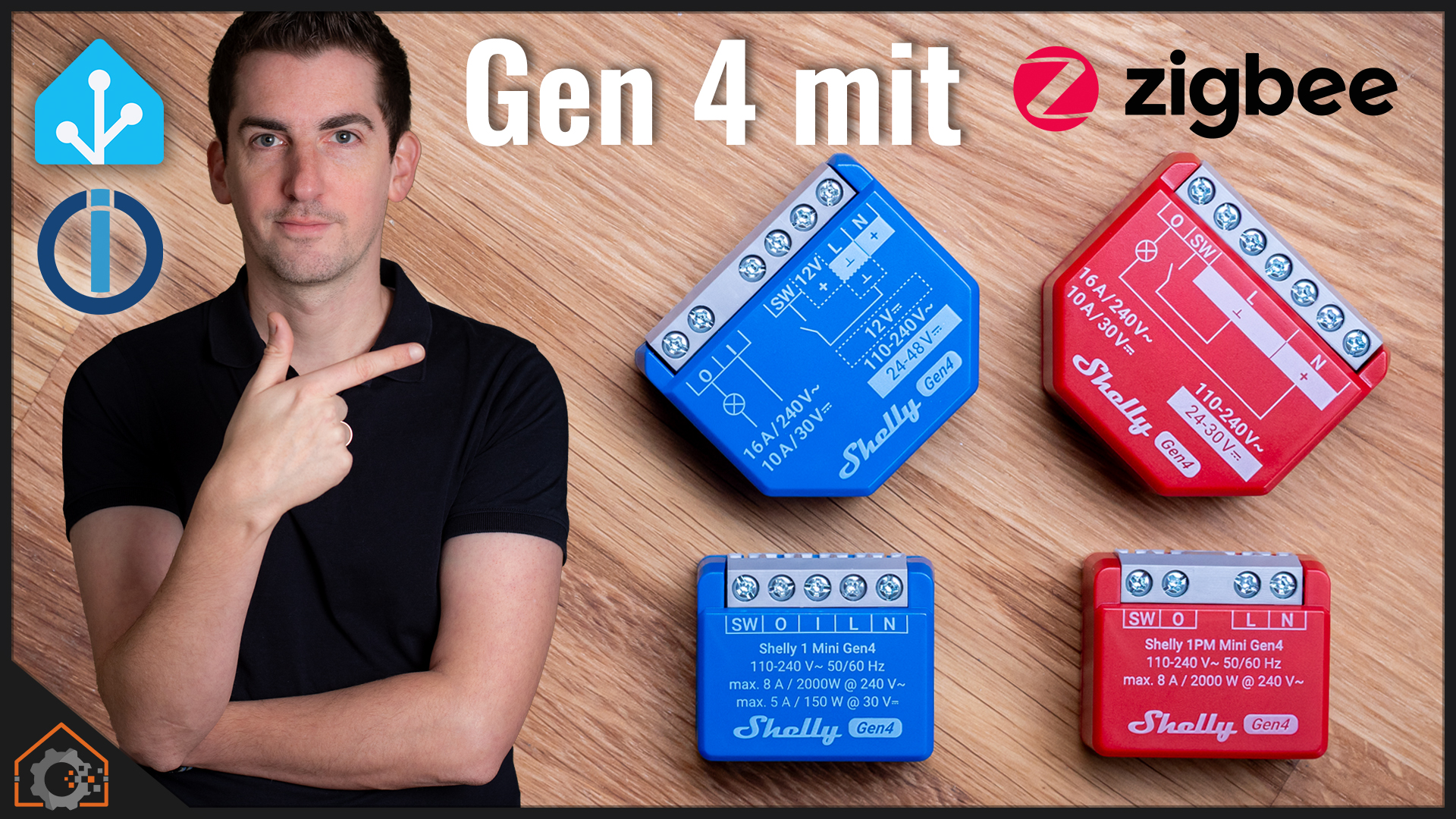
  • Shelly Generation 4 mit Zigbee und Matter

    Shelly Generation 4 mit Zigbee und Matter

    Seit vielen Jahren entwickeln sich Shelly-Komponenten stetig weiter. Regelmäßig kommen neue Protokolle dazu und der Hersteller überrascht uns immer wieder. Die neue Shelly Generation 4 kam überraschend schnell. Der Grund sind die neuen ESP32-C6 Chips von Espressif, welche nun auch Zigbee (und theoretisch auch Thread) unterstützen. Somit können deine Shellies erstmalig auch mit Zigbee angesteuert werden. Aktuell kosten die Generation 4 Geräte ca. 20 Prozent mehr als die Generation 3. Lohnt sich der Aufpreis für Zigbee? Wir schauen uns die Geräte gemeinsam im Detail an.

    (mehr …)

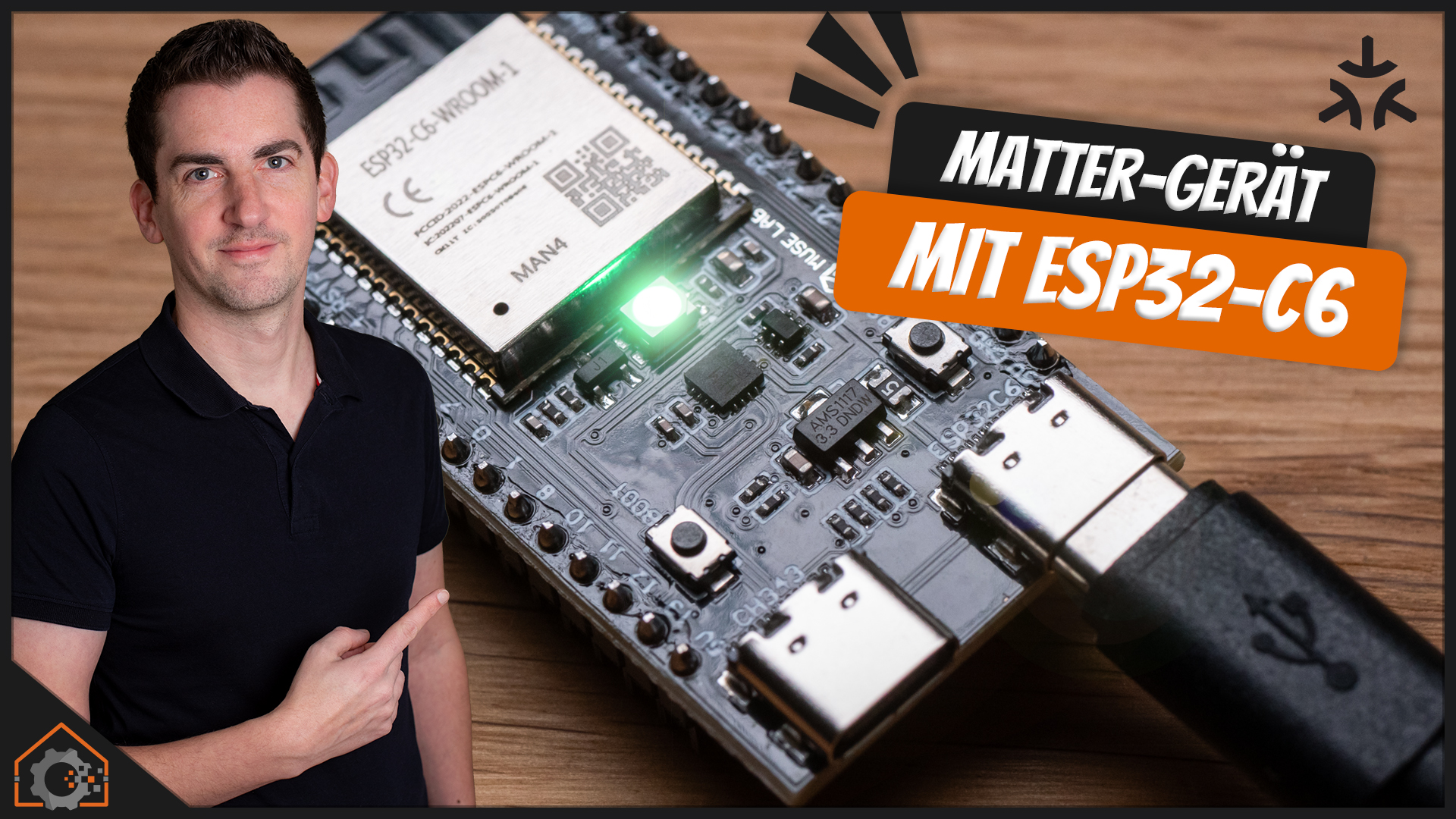
  • Matter: Eigene Geräte mit einem ESP32 bauen (ohne programmieren)

    Matter: Eigene Geräte mit einem ESP32 bauen (ohne programmieren)

    Viele setzen mittlerweile auf Matter – wobei die Produktauswahl aus meiner Sicht immer noch zu wünschen übrig lässt. Außerdem sind die Geräte häufig sehr teuer und können nicht das, was man gerade braucht. Umso schöner wäre es doch, wenn man selbst Matter-Geräte bauen könnte, oder? Und wer hätte es gedacht: Mit einem ESP32 kommt man schnell zum Ziel. Und das alles, ohne auch nur eine Zeile Code schreiben zu müssen! Dafür nutze ich in diesem Beitrag die Plattform Zerocode vom Hersteller Espressif.

    (mehr …)

  • What’s new in Home Assistant April 2025.4 release – Variable scopes, Areas Dashboard, Clock Card, Voice and more!

    Hey, here I am again, and this time with all the new features in the Home Assistant April 2025.4 release. I’m super excited about what’s included in this update! I’ll talk about new variable scopes in automations and scripts, the new Areas dashboard, the clock card, amazing voice expansions, backups, and much more. Let’s dive right in!


    ⭐⭐⭐ NOTE: ⭐⭐⭐

    This article is the script for a YouTube video. I wrote it prior recording the video. To continue doing this, please check out the video, comment under it, give it a thumbs up, and subscribe to my YouTube channel. This will ensure that the video is offered more often to new visitors so that they can stay informed of the latest Home Assistant tutorials and smart home-related product reviews.

    I appreciate your support!

    Ed

    Click here to watch the video

    First, I want to mention that this video is based on the beta version of the 2025.4 release, so the final release may contain a few minor changes. Usually, these differences are minimal. The final release is scheduled for the first Wednesday of April, but you can install the beta version if you want to try out the new features now.

    During our content creators’ meeting, I was excited about the new additions to Home Assistant. Once again, the team has delivered a fantastic release!

    Areas Dashboard

    Yessss, it’s finally here! You can now automatically generate your dashboard—at least the first step has been taken. If you’ve assigned your devices and entities to the correct areas, you can now generate a dashboard that displays all relevant devices and entities per area. This will be a massive help for people starting with Home Assistant, making it much easier to build a dashboard quickly. And the best part? Your dashboard is automatically updated when you add new entities to your areas!

    You can make areas visible or hidden and change their order. If you’ve set them up for that specific area, temperature and humidity are displayed for each area.

    You can also make entities visible or hidden and rearrange them. Most entities are displayed using tile cards, but for cameras, for example, the camera feed is shown directly.

    Once you’ve set up the basics, you can customize the dashboard. The team has mentioned that more updates are coming, so this feature is still considered experimental.

    New Clock Card

    This must be 2025’s killer feature. The new clock card is here and shows… well… the time!

    Improved Voice Wizard

    A new voice wizard has been added, which appears when you set up a Home Assistant Voice Assistant-compatible device. This makes it easier to configure your voice device, such as the Voice PE, correctly in one go.

    Continued conversation with LLMs

    This is another excellent system enhancement! In the past, you had to use the wake word for every question you asked your voice assistant. But starting with the 2025.4 release, that’s no longer necessary. Once the LLM responds, you can continue the conversation without repeating the wake word.

    Starting Conversations

    You can now not only continue a conversation, but Home Assistant can also initiate one, allowing you to respond and quickly trigger an automation, for example. Your system can now detect if you forgot to lock your door and, upon noticing it, send a notification informing you that the door is unlocked and asking if you want to lock it. You only need to reply with “yes” or “no,” and the door will be locked.

    This feature only works if you’re using an LLM.

    I’ll create a more in-depth tutorial on this later.

    Pre-Announce Sound

    Now that we can let Home Assistant start a conversation, it would be great if there was a pre-announce sound that we can configure ourselves. And yes, we can do that. Just upload an audio file to your /www folder; you can use that as the pre-announce sound for a conversation.

    Restoring Backup from Home Assistant Cloud during onboarding

    And yet another excellent new feature. When you need to install Home Assistant from scratch because something went wrong in your system, you can now immediately restore a backup from Home Assistant cloud during the onboarding process.

    New Integration

    Of course, this release also includes several new integrations and updates to existing ones. You can find them in this list; the link is also available in the description of this video. Significant changes have been made to the SmartThings integration, and the Reolink integration has also been further expanded.

    Other Noteworthy Changes

    In addition to the changes I’ve shown you, you can find more updates on this list. One of the most important is adjusting the scope of variables in automations and scripts.

    Automation & Script variable scopes

    For users who create more advanced automations and scripts with variables, this change may impact your existing automations and scripts. Previously, variables were only available within the automation section where they were declared.

    Starting with the upcoming release, variables will be declared globally within the automation or script, allowing them to be accessed throughout the entire automation or script.

    Here’s an example:

    actions:
      - variables:
          x: 1
          y: 1
      - sequence:
        - variables:
            y: 2  # Updates y which exists in the outer scope
            z: 2  # Since z is not defined yet, it is assigned in the top-level scope
      - action: persistent_notification.create
        data:
          message: "{{ x }}, {{ y }}, {{ z }}" # x=1, y=2, z=2
          # Note: previously it would be: x=1, y=1, z undefined

    So, if you have declared variables with the same name in multiple parts of the same automation, the automation may produce unexpected results.

    Templates

    Additionally, new functions for templates have been added, as you can see in the list. These are especially useful for advanced users who love working with templates!

    Last but not least, you can now create a hierarchy for energy management devices. For each device, you can specify whether it is part of a larger system.

    This is ideal if a breaker monitors the energy consumption of an entire circuit while also tracking individual devices within that circuit.

    So, these are the new features coming in the Home Assistant April 2025.4 release! This update goes live on the first Wednesday of April, and I’m curious to hear what you think. Let me know in the comments what your favorite new feature is! It’s hard to choose, but I think the voice expansions are my favorite.

    I’d like to thank these amazing people for their monthly financial support. Without your help, I wouldn’t be able to keep this channel going. If you’d like to support me as well, you can do so via Patreon, Ko-Fi, or by becoming a paid member of this channel. Your support helps me continue making these videos and tutorials for you. Thank you in advance! You can find links to support me in the description of this video.

    Please remember to give this video a thumbs up, subscribe to my channel, and leave a comment. It will help more people discover this video. I really appreciate it!

    See you soon!

    Bye-bye!

    The post What’s new in Home Assistant April 2025.4 release – Variable scopes, Areas Dashboard, Clock Card, Voice and more! appeared first on Smart Home Junkie – Tutorials and Information for your Smart Home and Home Assistant.

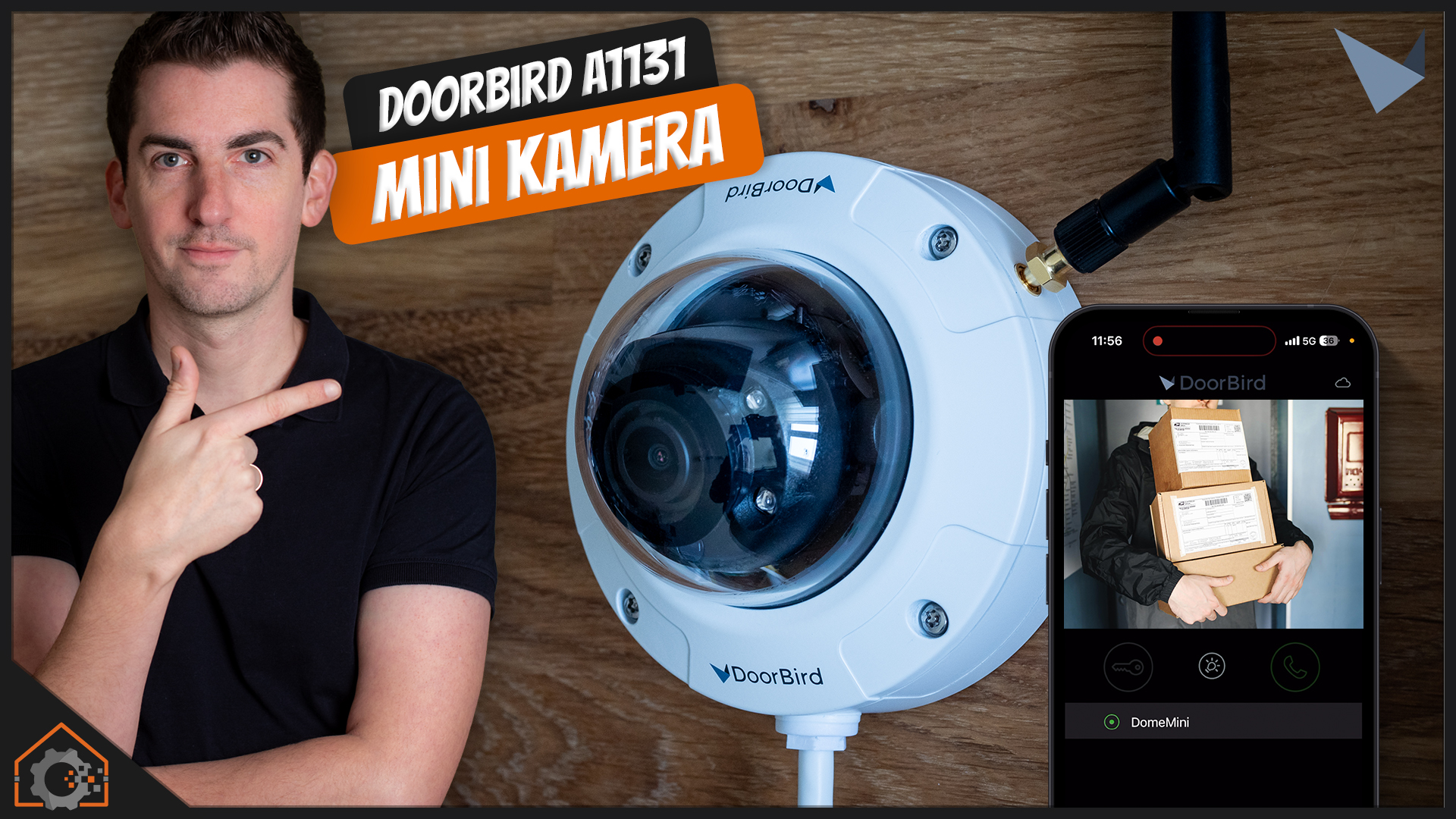
  • Doorbird Mini Dome Kamera im Test (A1131)

    Doorbird Mini Dome Kamera im Test (A1131)

    Vor gut fünf Jahren habe ich die Türstation D2101V vorgestellt. Umso mehr freut es mich, dass Doorbird mir die neue A1131 Kamera zur Verfügung gestellt hat, welche sich nahtlos in ein Doorbird-System integrieren lässt. Es handelt sich um eine Mini Dome Kamera, welche ihrem Namen wirklich alle Ehre macht und sehr klein und unauffällig ist. Aber wie schlägt sie sich im Alltag? Und: Ist der vergleichsweise hohe Preis gerechtfertigt?

    (mehr …)

  • Die Zukunft des Smart Home: Trends und Technologien für 2025

    Die Zukunft des Smart Home: Trends und Technologien für 2025

    Der Markt für intelligente Hausautomationssysteme wächst kontinuierlich und bringt jedes Jahr maßgebliche Innovationen hervor. Für 2025 zeichnen sich klare Trends und Technologien ab, die Smart Home-Systeme noch effizienter, sicherer und benutzerfreundlicher machen. Neben Fortschritten in der Automatisierung und künstlichen Intelligenz spielen auch Datenschutz sowie Energieeffizienz eine zentrale Rolle. Dabei rückt vor allem die Vereinfachung der Nutzung für den Endverbraucher in den Vordergrund, da immer mehr Menschen aus verschiedenen Altersgruppen Interesse an einer verbesserten Heimtechnologie zeigen. Der Smart Home-Markt breitet sich zudem international aus und wird durch verschiedene Förderprogramme für energieeffizientes Wohnen zusätzlich angetrieben.

    Neue Entwicklungen im Bereich der Automatisierung

    Smarte Sensorik und Automatisierungssysteme

    Die Integration smarter Sensoren wird 2025 weiter optimiert. Insbesondere Präsenzmelder mit erweiterten Funktionen wie etwa Raumklimaüberwachung oder Feuchtigkeitssensoren werden immer häufiger in modernen Gebäuden eingesetzt. Produkte wie der MDT-Kombi-Präsenzmelder ermöglichen eine lückenlose Automatisierung, die neben Komfort auch Energieeinsparungen bietet. Zudem sind smarte Wettersensoren, beispielsweise der KNX-basierte Wettersensor, entscheidend für die automatische Steuerung von Rollläden, Markisen oder Heizsystemen. Zusätzlich werden diese Sensoren mit fortschrittlichen Warnsystemen kombiniert, die auf Unregelmäßigkeiten wie starke Wetterumschwünge oder Lecks in Wasserleitungen reagieren können, um Schäden frühzeitig zu verhindern.

    Zukunftsfähige Technologien in der Gebäudetechnik

    Zentrale Steuerungssysteme werden zunehmend durch KI-basierte Algorithmen unterstützt. Diese lernen die Gewohnheiten der Bewohner, um individuelle Automatisierungsprozesse zu entwickeln. Fortgeschrittene Lösungen wie der Homematic IP Wired ermöglichen ein feingliedriges Management ganzer Gebäude. Der Fokus liegt dabei auf modularen und skalierbaren Systemen, die sich an variable Anforderungen anpassen lassen. Homematic IP Wired Planung ist ein Beispiel für durchdachte Lösungen im privaten und gewerblichen Bereich. Komfort und Effizienz gehen dabei Hand in Hand, während die Fähigkeit, solche Systeme einfach aufzurüsten oder in bestehende Gebäude zu integrieren, den Fortschritt zusätzlich beschleunigt.

    Künstliche Intelligenz und Nachhaltigkeit als Treiber

    Vernetzte Geräte und KI-Einsatz

    Eine der zentralen Neuerungen für das Smart Home ist der verstärkte Einsatz vernetzter Geräte und künstlicher Intelligenz. Sprachgesteuerte Assistenten entwickeln sich weiter und bedienen nun ganze Hausautomationssysteme. Verfahren zur Auswertung großer Datenmengen ermöglichen individuelle Steuerungen, die Energie sparen und die Nutzererfahrung verbessern. Besonders interessant ist die Kopplung mit Services wie WordPress Hosting, da Smart Homes auch zunehmend von digitalen Plattformen abhängig sind. Durch die Verknüpfung mit Cloud-Lösungen werden Daten in Echtzeit verarbeitet, um beispielsweise Stromverbrauch oder Heizkosten an die tagesaktuellen Gegebenheiten anzupassen. So wird neben der Bequemlichkeit auch der ökologische Fußabdruck der Haushalte optimiert.

    Nachhaltigkeit und Energieeffizienz

    Mit den hohen Anforderungen an den Klimaschutz rückt die Energieeffizienz noch stärker in den Fokus. Intelligente Energiemanagementsysteme sind zentrale Komponenten moderner Smart Homes. In Kombination mit erneuerbaren Energien, wie beispielsweise Photovoltaikanlagen, lassen sich Stromverbrauch und -kosten optimieren. Technologien zur wetterbasierten Steuerung und automatisierten Verbrauchsanpassung helfen dabei, den Energiebedarf ganzer Gebäude drastisch zu senken. Hinzu kommt der vermehrte Einsatz von Energiespeichersystemen, die mit den Smart Home-Plattformen verknüpft sind, um überschüssige Energie zwischenzuspeichern oder ins Netz einzuspeisen.

    Bildung als Grundlage für die Technik von morgen

    Um den wachsenden Anforderungen an Automatisierung und Smart Home-Technologien gerecht zu werden, legen Universitäten wie die Technische Hochschule Wildau mit ihrem Studiengang in Automatisierungstechnik die Basis für zukünftige Innovationen. Solche Programme fördern die Entwicklung von Fachkräften, die zukunftsorientierte Technologien nicht nur beherrschen, sondern auch gestalten können. Zudem findet immer häufiger eine Kooperation zwischen privaten Unternehmen und Hochschulen statt, um Forschung und Anwendung zu beschleunigen. Dies eröffnet jungen Fachkräften nicht nur attraktive Karrieremöglichkeiten, sondern stärkt den gesamten Innovationsmarkt.

    Praktische Anwendung und Planung von Smart Home-Lösungen

    Flexible Nachrüstsysteme

    Der einfache Einbau von Nachrüstsystemen bleibt ein wichtiger Trend, besonders in Altbauten. Taster mit Funktechnologie, wie die Theben RF Taster, bieten dabei praktische Lösungen für die Integration moderner Smart Home-Technologien ohne große bauliche Veränderungen. Diese Systeme bieten nicht nur Komfort, sondern sind auch für Mietwohnungen ideal geeignet, da sie schnell und ohne Eingriffe in die Bausubstanz installiert werden können. Darüber hinaus ermöglichen solche Lösungen eine schrittweise Implementierung smarter Technologien, sodass auch Haushalte mit begrenztem Budget von den Vorteilen profitieren können.

    Investitionen in Sicherheit und Datenschutz

    Mit der zunehmenden Vernetzung smarter Geräte steigt die Bedeutung von Datenschutz und Cybersicherheit. Die Sicherstellung einer verschlüsselten Kommunikation zwischen den Geräten und der Schutz persönlicher Daten stehen 2025 ebenso im Fokus wie Benutzerfreundlichkeit. Offene Plattformen sollen einerseits Kompatibilität sicherstellen, gleichzeitig jedoch vor unbefugtem Zugriff schützen. Hersteller setzen verstärkt auf regelmäßige Software-Updates und Sicherheitsprotokolle, um neu auftretende Schwachstellen schnell zu beheben. Für den Endnutzer wird es zunehmend wichtig, sich über Sicherheitsmechanismen und bewährte Maßnahmen wie Zwei-Faktor-Authentifizierung zu informieren.

    1. Sensorintegration: Von Präsenzmeldern bis hin zu Raumklimasensoren.
    2. KI-basierte und wetterabhängige Steuerung.
    3. Integration von Sicherheitssystemen und Datenschutz-Protokollen.
    4. Einsatz von Cloud-Technologien für verbesserte Performance.
    5. Förderung erneuerbarer Energien durch intelligente Energiemanagementsysteme.

    Die Zukunft des Smart Home wird von rasanten Fortschritten in der Technologie und den wachsenden Anforderungen an Nachhaltigkeit und Effizienz geprägt. Wichtige Faktoren wie die Automatisierung, intelligente Steuerungen und die enge Verbindung von Geräten zum Internet versprechen schon heute neue Standards, die das Wohnen komfortabler und ressourcenschonender gestalten. Branchenübergreifende Innovationen werden es künftig ermöglichen, komplexe Systeme nahtlos zu integrieren und so die Lebensqualität nachhaltig zu verbessern. Dabei wird insbesondere die Balance zwischen technologischer Entwicklung, Benutzerfreundlichkeit und ökologischem Bewusstsein den Markt prägen.

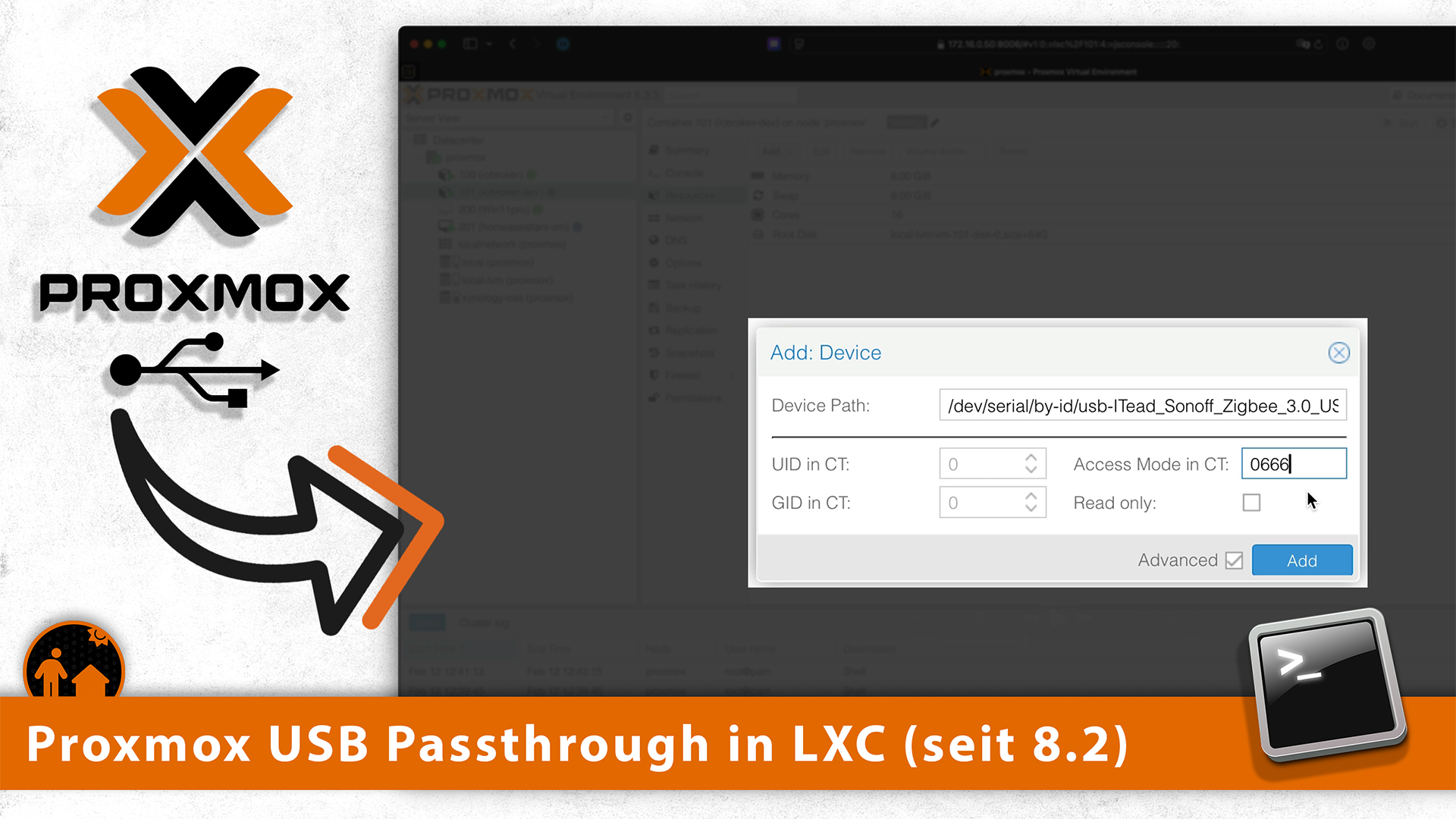
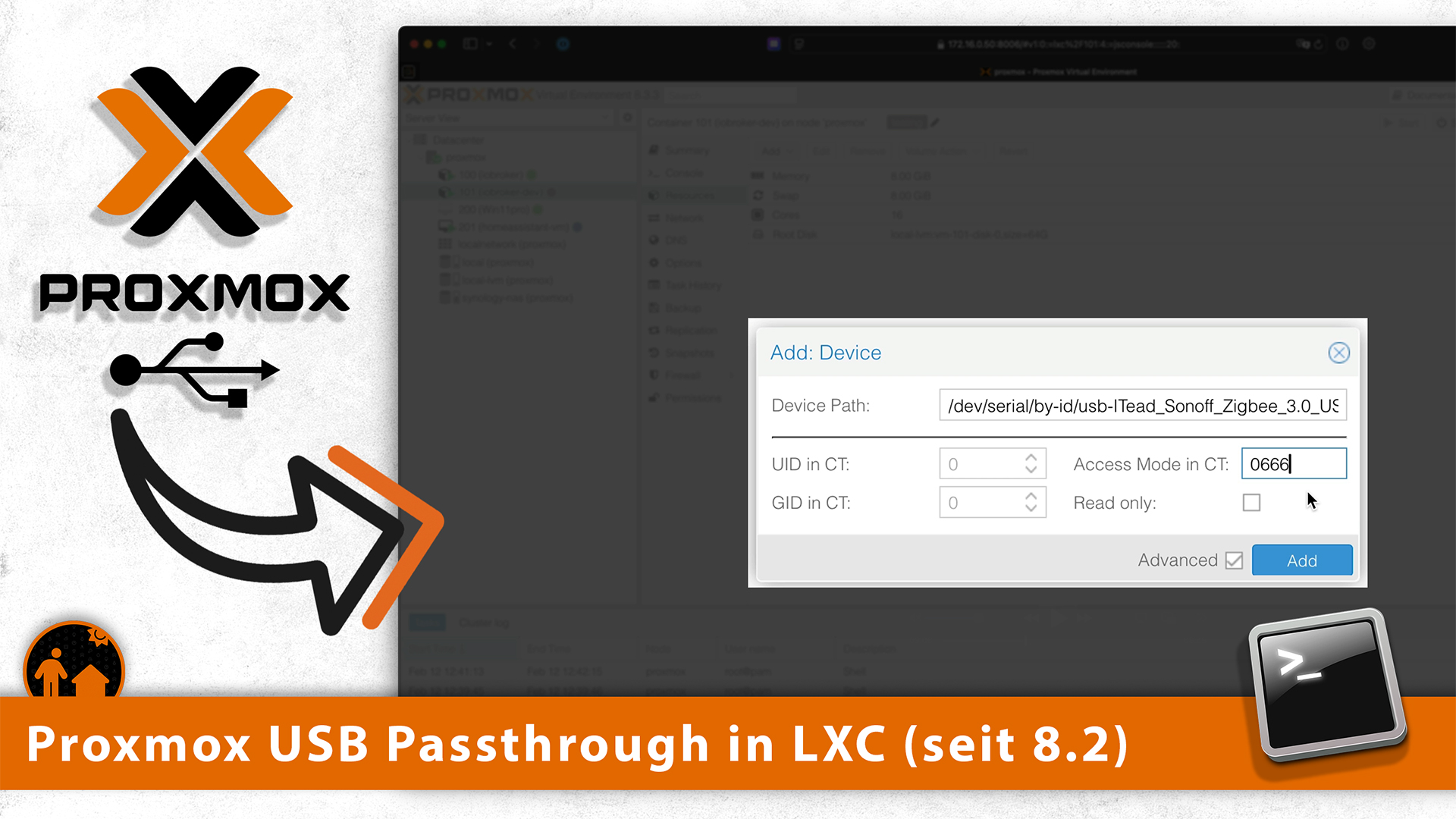
  • Proxmox – USB-Geräte in LXC-Container (ohne udev Rules)

    Proxmox – USB-Geräte in LXC-Container (ohne udev Rules)

    Vor fast 2 Jahren habe ich gezeigt wie man USB-Geräte (wie z.B. Zibee-Sticks) in LXC-Container durchreichen kann. Seit Proxmox 8.2 ist das Thema allerdings deutlich einfacher lösbar. Daher möchte ich an dieser Stelle den neuen Weg mit Dir teilen und Dich nicht auf die umständliche Reise schicken, welche damals noch notwendig war. Das Stichwort hier ist “Device Passthrough”. Mehr dazu im Video!

    (mehr …)

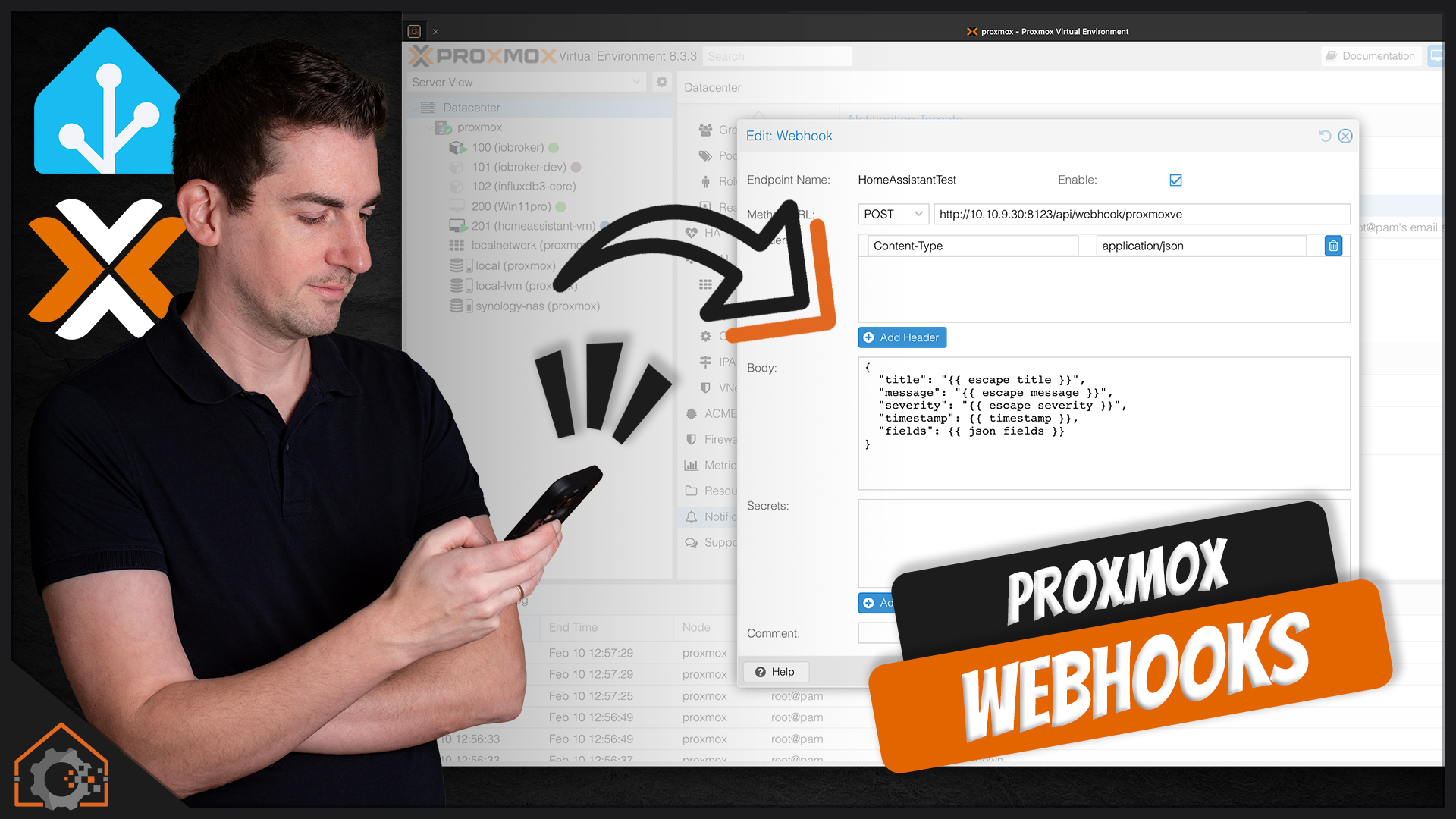
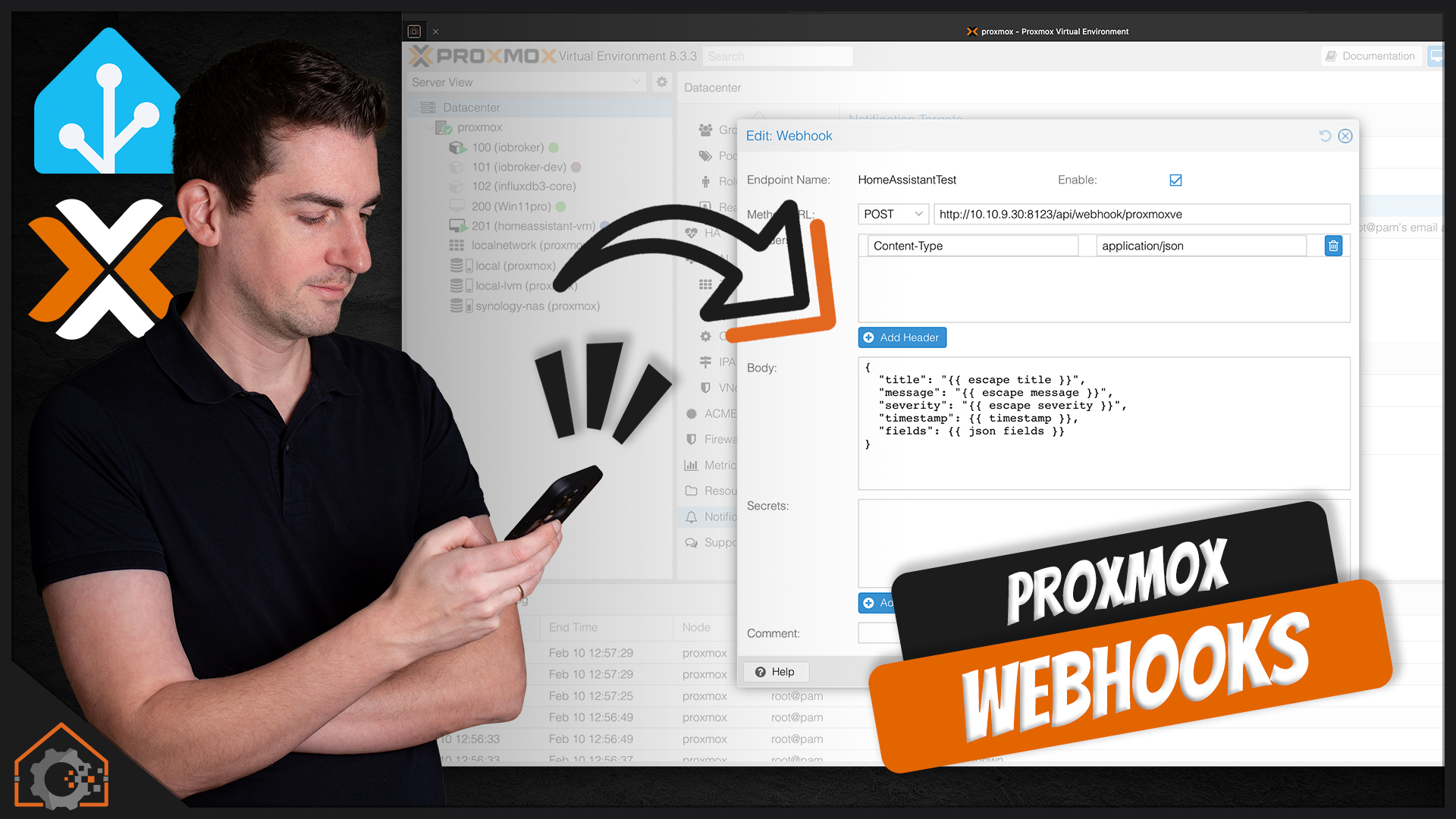
  • Home Assistant: Proxmox-Webhooks nutzen

    Home Assistant: Proxmox-Webhooks nutzen

    Seit Proxmox Version 8.3 werden als Ziel für Benachrichtigungen (Notifications) auch sog. Webhooks unterstützt. Das sind also HTTP-Aufrufe gegen ein beliebiges Ziel. Damit könnte man beispielsweise eine Push-Notification über Pushover generieren. Oder man gibt die Informationen einfach an sein Home Assistant System und kann damit tun was immer man will. Die nötigen Schritte dafür zeige ich Dir in diesem Video.

    (mehr …)

  • InfluxDB 3.x – Die Aplpha-Version ist da!

    InfluxDB 3.x – Die Aplpha-Version ist da!

    Nachdem ich vor ein paar Jahren wirklich viel Zeit in Grundlagen-Videos zu InfluxDB 2 gesteckt habe, war ich sehr enttäuscht, dass es mit Flux nicht weiter geht. Entsprechend wenig Zeit habe ich in neue Inhalte zu InfluxDB gesteckt. Seit Mitte Januar 2025 steht aber jetzt die Alpha-Version von InfluxDB 3 bereit! Und da muss ich einfach mal genauer hinschauen und mir einen ersten Eindruck machen!

    (mehr …)